HELP TECH SUPPORT 4U

  • Home
  • Technology
    • Microsoft
    • Google
    • Twitter
    • Skype
  • FAQ
    • Drop Down CSS Menus
    • Horizontal CSS Menus
    • Vertical CSS Menus
    • Dreamweaver Menus
  • Contact

Redmi Note 4 (Dark Grey, 64GB) Best Fone- Rs10,999.00

in: Redmi Note 4 at 08:54


Colour: Grey
Technical Details
OSAndroid
RAM4 GB
Item Weight163 g
Product Dimensions7.6 x 0.8 x 15.1 cm
Batteries:1 Lithium ion batteries required. (included)
Item model numberRedmi Note 4
Wireless communication technologiesBluetooth, WiFi Hotspot
Connectivity technologiesWiFi 802.11 a/b/g/n
Special featuresDual SIM, GPS, Music Player, Video Player, FM Radio, Gyroscope, Infrared, Proximity sensor, Accelerometer, Ambient light sensor, eCompass, E-mail
Other camera features5MP
Form factorTouchscreen Phone
Weight163 Grams
ColourGrey
Battery Power Rating4100
Whats in the boxHandset, Adapter, USB Cable, Warranty Card, User Guide and SIM Insertion Tool


Warranty & Support
Warranty Details: 1 year manufacturer warranty for device and 6 months manufacturer warranty for in-box accessories including batteries from the date of purchase


BOOTMGR MISSING..TO RESTART PRESS CNTROL ALT DELETE

in: Microsoft windows 7 at 22:40

Based on the error message, that you get now, I would suggest you to try the following methods and check if the same issue you have. first you need to have a Windows 7 installation disc for a few methods.

Tips 1: Startup Repair from the Windows Recovery Environment (WinRE)
1. Insert the Windows 7 installation disc into the disc drive, and then start the computer. 
2. Press a key when the message indicating "Press any key to boot from CD or DVD …". appears.
3. Select a language, a time and currency, and a keyboard or input method, and then click Next. 
4. Click Repair your computer. 
5. In the System Recovery Options dialog box, choose the drive of your Windows installation and click Next. 
6. At the System Recovery Options Dialog Box, click on Repair your computer.
7. Click the operating system that you want to repair, and then click Next.
8. In the System Recovery Options dialog box, click Startup Repair.

Refer the following link for more information:
http://windows.microsoft.com/en-US/windows7/What-are-the-system-recovery-options-in-Windows-7
To know more about “Startup Repair” visit the following link:
http://windows.microsoft.com/en-us/windows7/Startup-Repair-frequently-asked-questions
Tips 2: Rebuild BCD using the Bootrec.exe tool
To run the Bootrec.exe tool, you must start Windows RE. To do this, follow these steps:
1. Put the Windows Vista or Windows 7 installation disc in the disc drive, and then start the computer.

2. Press a key when you are prompted. Select a language, a time, a currency, a keyboard or an input method, and then click Next.
3. Click Repair your computer.
4. Click the operating system that you want to repair, and then click Next.

5. In the System Recovery Options dialog box, click Command Prompt.
6. Type Bootrec.exe, and then press ENTER.


Refer the following link for more information:
How to use the Bootrec.exe tool in the Windows Recovery Environment to troubleshoot and repair startup issues in Windows
http://support.microsoft.com/kb/927392
Method 3: Use the Windows Recovery Environment (WinRE) to run System Restore
1. Insert the Windows 7 installation disc into the disc drive, and then start the computer. 
2. Press a key when the message indicating "Press any key to boot from CD or DVD …". appears.
3. Select a language, a time and currency, and a keyboard or input method, and then click Next. 
4. Click Repair your computer. 
5. In the System Recovery Options dialog box, choose the drive of your Windows installation and clickNext 
6. At the System Recovery Options Dialog Box, click on System Restore.
7. Follow the System Restore Wizard instruction as usual and choose the appropriate restore point.
8. Click Finish to restore the system.

To know more about “System Restore” visit the following link:
http://windows.microsoft.com/en-us/windows7/System-Restore-frequently-asked-questions
If the above methods do not help, you may try to follow the methods mentioned in this article:
Error message when you start Windows Vista: "The Windows Boot Configuration Data file is missing required information"
http://support.microsoft.com/kb/927391
Note: This article also applies to Windows 7 Operating system as well.
Hope this information is helpful. Do let us know if you need any further assistance, we'll be glad to assist you.

Skype users in India will soon be unable to call landlines and mobiles Phones

in: Microsoft skype at 06:36
The skype Stop his service delivering calls on landline and mobile phones in India from November 10 it very sad news to skype lover the company not give any reason for this decision .


In a statement come, Skype said that users will not be able to make calls to phones in India if they are based in India. However, Skype calls to other countries are still enabled for India-based users.
 

Those travelling outside India can make calls to landline and mobile phones in India. 

Skype is offering to fully refund the users who have been affected by this announcement. The company has also apologized to them in a statement.

Only those Skype calls made from Indian IP addresses to mobiles and landlines in India will be not be available. All those who had purchased Skype Credits to make such calls have time till November 10, when the feature will be scrapped. Skype’s FAQ does not offer any explanation on why this is happening.

In a support page, Skype said:
“If you’ve bought a subscription to India specifically to call within the country, you can cancel your subscription to avoid being billed in the future.
Keep in mind that before 10 November 2014, you can still use your subscription and Skype Credit to call within India, so be sure to use up any remaining minutes or credit you have before then.”
Neither Microsoft nor Skype has offered any reason for this weird change but the company has offered to refund users who will be affected by this announcement.
Source ➤ Skype Support

Windows 10's new keyboard shortcuts

in: Microsoft windows 10 at 13:50
Windows 10 Technical Preview Launch  and its given  new features  new designed ....
The Shortcuts details come courtesy of Brandon LeBlanc of Microsoft’s Blogging Windows blog. If you install the Windows Tech Preview so check this fast to what new come out.


While there are many new features like virtual desktops and the Start menu making its comeback, for keyboard lovers out there.
Microsoft is also introducing six new keyboard shortcuts to take advantage of the new features.
  • Snapping window: Windows key + Left or Right — LeBlanc says: "(Can be used with UP or DOWN to get into quadrants.)" Quadrants is the new Snap view mode that pins apps to the four quarters of the screen.
  • Switch to recent window: Alt + Tab – LeBlanc says: "Hold shows new Task View window view, let go and switches to app."
  • Task view: Windows + Tab – LeBlanc says: "New Task view opens up and stays open."
  • Create new virtual desktop: Windows key + Ctrl + D
  • Close current virtual desktop: Windows key + Ctrl + F4
  • Switch virtual desktop : Windows key + Ctrl + Left or Right
you want to start using Windows 10’s  Command Prompt hotkeys (fist learn via the keyboard shortcut ) then be sure to check out Scott Hanselman’s extensive post on the topic.
We also desire that more shortcuts will be available in the final build of Windows , till date...  its launch -----All the good wishes to Microsoft  !! 

See the Technical Preview's windows 10 -New Latest feature

in: Microsoft windows 10 at 10:42
WHAT FEATURE COME LET'S SEE


1. start-menu-on-screen


Microsoft again with starting the Start menu. Windows 10 revives the old standby, but rather than focusing on desktop programs alone, the Windows 10 Start menu fuses a traditional Start menu layout with a mini-Start screen of sorts, populated with tiles for the Windows Apps or desktop programs of your choosing.


2. The squat Start menu

You can also resize the Start menu as you see fit, shrinking it down ‘til it’s squat or dragging it almost all the way up to the top of the screen. It’ll automatically expand horizontally as you add more and more Live Tiles to the Start menu.


3. Pick your poison

Windows 10 for PCs defaults to the desktop and the new Start menu, but you can bring the Windows 8 Start screen back if you'd like. Right-click on the taskbar, selectProperties, open the Start Menu tab, and uncheck the box next to “Use the Start menu instead of the Start screen.”

After you click OK you’ll be prompted to sign out of Windows, and then log back in…


4.Windows 10 Start screen

where you’ll promptly be greeted by the full-screen Start screen! Yep, it’s still here—just hidden.


5.Start menu customization options

The same Start menu tab that allows you to default to the Start screen also includes a Customize button that lets you tweak exactly how the desktop Start menu behaves, as well as which specific shortcuts appear on it.


6. Metro apps meet the desktop

As promised, Windows Apps now appear in desktop windows, rather than being the full-screen-only giants they were in Windows 8. They can be resized just like any other desktop window. Meanwhile, the mouse-friendly Windows App menu bar introduced in Windows 8.1’s spring update has blossomed: It’s now full of options that used to be buried behind the Charms bar.


7. Snap suggestions

Those Windows Apps can be split-screen Snapped next to traditional programs on the desktop in Windows 10. Another nifty feature: After you Snap a window to half (or whatever) of the screen, the operating system pops up suggestions of running apps you may want to Snap next to it in the “open” half of the screen. It’s reminiscent of the tiling windows management found in Linux PCs.


8. Search on the desktop

Now for the two new icons next to the Start button: First up is the magnifying glass icon, which brings up Windows 10’s search feature. The feature largely mimics the search functionality baked into the Windows 8 Start screen, surfacing programs, files, and even Bing-surfaced web pages related to your search queries. It’s lightning-quick and insanely useful—just like Windows 8’s search capabilities.


How to Install the Windows 10 Technical Preview

in: Microsoft windows 10 at 18:01

Microsoft announced the Latest version of Windows lunch. The company is permission  to users (like yourself) to try it out for free. Here's how? try this easy steps to install windows 10 .


Follow these Steps: (Before  Install)

There are a Some warnings you should be aware of before you do anything:
    > Back up your data first: backup on your data before you upgrade if you have anything you can't recover. Or even if you don't. Just do a backup.

    > External recovery media to undo the upgrade. As you might expect since you don't have a recovery partition, you'll need a disc or USB drive with Windows 8 (or older) on it to get back to the way things were if you don't like or can't use Windows 10. 
    As Microsoft suggest ,this is pre-release software and is expected to be very buggy and probably crash-prone. It's not advisable that you install this on your work machine or anything you need daily use out of. We'll show you how to install it on a spare PC, or if you don't have one in VirtualBox.
What You'll Need:

FIST YOU GO TO THIS ADDRESS : http://windows.microsoft.com/en-us/windows/preview

This time around, Microsoft has created the Windows Insider Program to allow users to test out the new hotness. You'll need to agree to a special terms and condition, In addition to downloading the update, the Insider Program will be how you provide feedback and get help from the community.
Once you're enrolled in the program, here's what you'll need:
One of the Windows 10 ISO files
  • A DVD or USB drive to hold a 4GB ISO file
  • Microsoft suggest  if you install please put in a spare computer (Microsoft does not recommend using your daily  driver to use for this installation), or you could install  VirtualBox on your main machine.
  • Install the Windows Technical Preview on Your PC
  • How to Install the Windows 10 Technical Preview Right Now
    Once you have all this you need, follow these steps:
    1. First :Copy the ISO to a drive or USB drive. 
    2. Second then you can use a tool like ImgBurn to unzip the ISO file, though if you're installing on a device that's already running Windows, the OS should be able to mount the ISO itself.
    3. Third: USB drive or disk>Insert in the computer that you want to install Windows 10 on.
    4. Fourth: If your machine have an older copy of windows installed on that machine , you could start it up and double-click setup.exe from the installation media. If  you have not, then boot up your PC from the installation disc to processes of start installation.
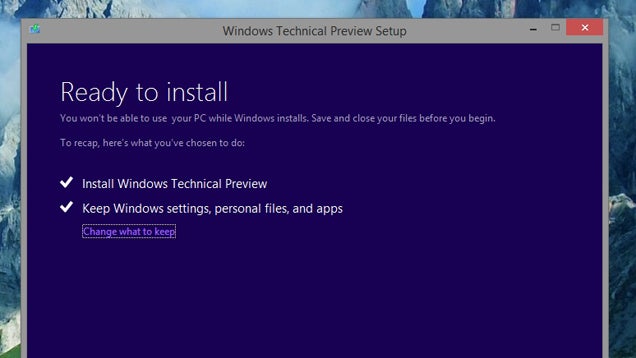
    5. Fifth: Follow the wizard to install Windows 10 on your machine.
    Microsoft's wizard will  help  you through the rest of the installation process.

    Method Two: Install the Windows Technical Preview in VirtualBox

    How to Install the Windows 10 Technical Preview Right Now
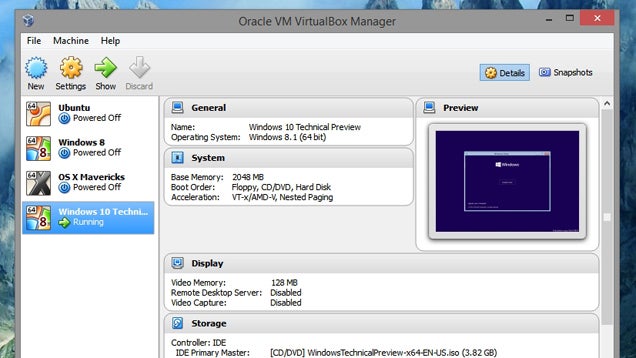
    If you don't have a another extra machine(PC) to try out the Technical Preview, we suggest you  installing it in VirtualBox. Therefor you can able to try it out, see what's new, and use  around without overwriting your main system.
    1. Download and install the latest version of VirtualBox, and star t it up.
    2. Then Click the "New" button in the main window, then create a new virtual machine.
    3. Give your OS  name Example: "Windows 10 Technical Preview" and select Windows 8.1 from the list, VirtualBox doesn't have a Windows 10 option available yet.
    4. Follow the instruction VirtualBox wizard to set up your virtual machine. 
    5. If it finishes, you should see your new machine in the left-hand side panel. Click on it and hit the Settings button along the top of the VirtualBox window.
    6. Head to Storage in the left sidebar, and next to "Controller: IDE", click the Add CD button.
    7. Then Select "Choose Disk" and navigate to your downloaded Windows 10 ISO.
    8. Then Click OK.
    9. Press Start to start up your new virtual machine and go through the Windows 10 installation process.
    Keep in mind: Before install windows 10 Remember this is pre-release operating system, so install at your own risk!
    Install and Enjoy Experience of Windows 10 !!

Microsoft Release New Operating system windows 10

in: Microsoft windows 10 at 09:56


SAN FRANCISCO -Microsoft conducta event this morning in San Francisco and they announced the launching new Windows operating system: Windows 10. very soon, promises release mid-2015 .

"It represents the first step in a whole new generation of Windows, said Microsoft executive Terry Myerson."

Microsoft focus on one Windows product family across devices. Its corporate users will find Windows 10 "familiar, compatible and productive," Myerson said.


He did promise, however, that Windows 10 would work across all types of devices computers, phones, , tablets it's a “One product family. One platform. One store.”

Microsoft will take back start menu in its next version of Windows and its Present .. Windows 10 will have start menu, the virtual desktops feature, the Notification Center, a flatter user interface, and even Cortana integration. also with an improved CMD and more good features.


 You can open apps from the Windows Store in the same format your desktop programs do – in windows that you can resize and move around.

CEO Satya Nadella said it Developed the ways in which it would make it easier for software developers to create applications that will work across all Microsoft devices — PCs, phones and tablets.
Home
Powered by Blogger.

Search This Blog

Total Pageviews

  • Microsoft
  • windows 10
  • Redmi Note 4
  • skype
  • windows 7

FOLLOW US

  • Facebook
  • Google+
  • Pinterest
  • Youtube

MOST POPULAR POST

  • Microsoft

OTHER SISTER SITES

  • Blogger Idea
  • Exe Ideas
  • All tech buzz
  • Gui Tricks
  • Coming soon

"© Copyright 2014" Help Tech Support4u · All Rights Reserved · And Our Sitemap · All Logos & Trademark Belongs To Their Respective Owners·
Template Developed By www.alltechmedia.org & Powered By www.complete-technoplus.blogspot.com